The tools are the same everywhere. What changes is how an agent connects and what it can do with a file. Three addresses cover every case.
Your frame’s link
https://app.wignet.app/w/<id>
The one the QR code opens. Paste it to an autonomous agent and it finds the rest itself.
Account connector
https://app.wignet.app/mcp/account
Every frame on your account, after signing in once. Copy it from Setup with Agents on your account page.
Frame connector
https://mcp.wignet.app/<id>
One frame, no account, no sign-in. The link is the key.
Examples of the paths our customers follow today. These apps change quickly, so yours may look a little different: look for Plugins, Connectors, Apps or MCP servers.
ChatGPT
Plugin, app or web
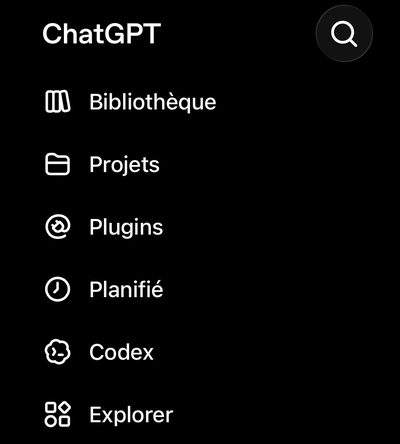
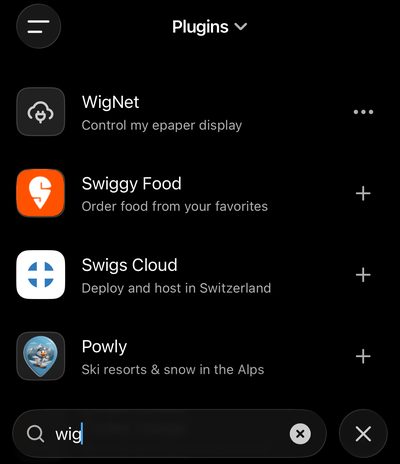
Side menu → Plugins, search WigNet and add it with +, then Authorize. There is no account behind it.
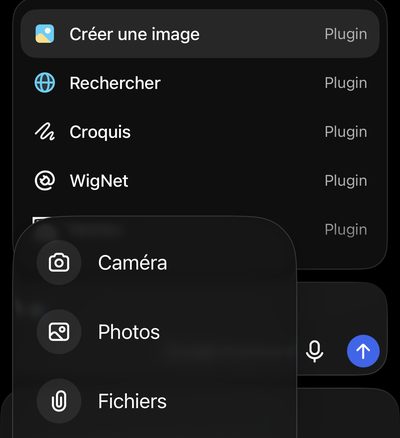
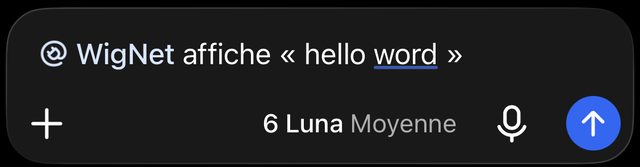
In a conversation: + → Plugins → WigNet, then write what to show, e.g. WigNet, show “hello world”.
The first time, paste your frame’s link. ChatGPT learns its name and uses it from then on.
Not in your directory? On chatgpt.com, Plugins → Add → Create an MCP app with https://mcp.wignet.app/ does the same.
Its strength: attach a photo and ask to show it. ChatGPT hands the file over itself, full size, nothing copied through the chat.
Claude
claude.ai, desktop and mobile
Settings → Connectors → Add custom connector.
Paste the account connector and sign in with your Wignet account, or the frame connector for one screen with nothing to sign.
Turn it on in the conversation’s tools menu, then just ask.
Its strength: it composes the image in its own sandbox at the screen’s size. Add the Wignet skill and it knows how to draw for e-paper and check that a change landed.
Claude Code, Codex, Cursor
Coding agents, one line
claude mcp add --transport http \
  wignet https://app.wignet.app/mcp/account
Then /mcp in Claude Code to sign in. Codex and Cursor take the same URL in their MCP settings, or the frame connector when you would rather skip the sign-in.
Its strength: a shell. It renders a PNG and sends the file straight to the frame, the most reliable path there is, and it can wire the screen into your CI or your scripts.
Grok
Custom connector, app or web
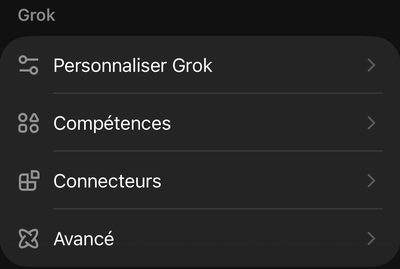
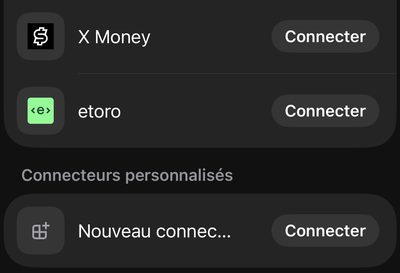
Settings → Connectors, then scroll to the very bottom: Custom connectors → New connector → Connect.
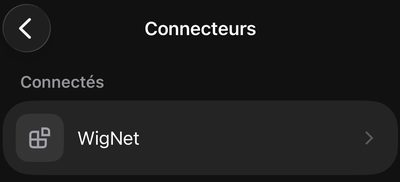
Paste the account connector and sign in with your Wignet account. WigNet now shows under Connected.
In a conversation, paste your frame’s link (its page or its MCP address) and ask in plain language.
1 · Settings, Connectors1 · New connector2 · WigNet connected
Its strength: fresh data from the web and from X, turned into a screen in one sentence.
Mistral Vibe (Le Chat)
Custom connector, app or web
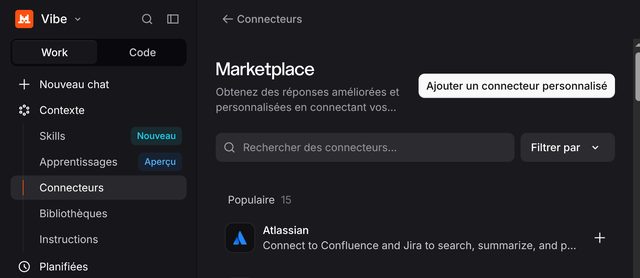
Work → Context → Connectors → Add a custom connector.
A name without spaces (wignet), the account connector, then sign in with your Wignet account.
In a chat in Work mode, check the connector is switched on and ask in plain language.
1 · Work, Context, Connectors
Its strength: a French assistant, and on a personal plan you are your own administrator: nobody has to approve the connector.
Kimi
App, iPhone
Open a chat in the Kimi app. There is no connector to add.
Paste your frame’s link and say what to show, e.g. show “hello” on my Wignet.
Kimi reads the frame’s page, then calls its API. The frame shows it at its next sync.
Its strength: nothing to set up. No connector, no sign-in: the link is the key.
Z.ai (GLM)
Chat, nothing to configure
Open a chat on Z.ai. There is no connector to add.
Paste your frame’s MCP address, https://mcp.wignet.app/<id>, and say what to show.
GLM reads it, then publishes through the API. The frame shows it at its next sync.
Its strength: the address already names the frame, so there is nothing else to explain or sign in to.
No connector to set up: give the agent your frame’s link and say what you want to see on it.
Here is my Wignet: https://app.wignet.app/w/<id>
Every morning at 07:00, show today’s weather
and my first meeting.
Its strength: it keeps the clock. An agent that stays on keeps the screen fresh without you.
Also compatible, not yet tested by us
Their documentation describes the same custom MCP connector. We have not tried these ourselves yet: if what you see differs, tell us.
Meta MuseAI agent
Muse Code reads MCP servers from the mcp_servers block of its settings file. The Muse app may also offer custom connectors: use the account connector.
DustTeams
An admin: Spaces → Tools → Add Tool → Add MCP Server, the URL, authentication Automatic. For a shared office screen, prefer the frame connector: every agent of the workspace then acts on that one screen only.
GeminiUS only for now
Settings → Connected apps → add a custom app, with the HTTPS URL. Reserved for now to personal accounts, 18 and over, in the US, in English. In Gemini Business, an admin adds it.
ManusAutonomous agent
Connectors → Create → Add MCP by URL, a name and the URL. The account connector asks you to sign in.
Kimi CodeCoding agent
kimi mcp add --transport http --auth oauth wignet https://app.wignet.app/mcp/account, then kimi mcp auth wignet.
Qwen CodeCoding agent
In ~/.qwen/settings.json, under mcpServers, an entry wignet with httpUrl set to the frame connector.
Whichever agent publishes, the frame shows it at its next sync, not the second it is sent. Leave any key or token field empty: the link or your sign-in is the access.
 Wignet